Answer
Apr 30, 2024 - 05:30 AM
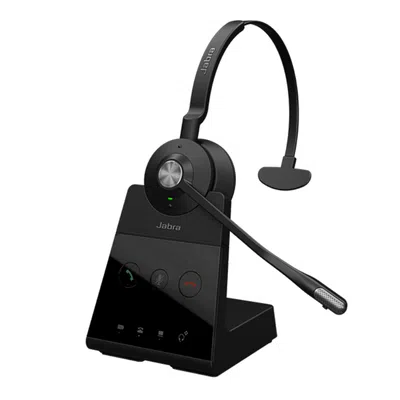
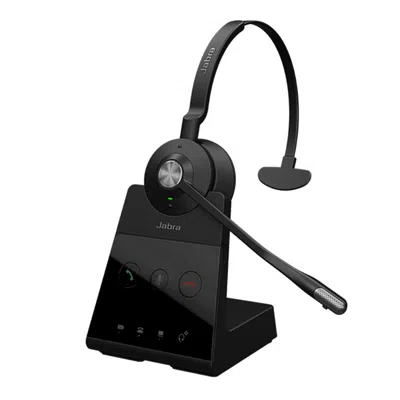
To use the Jabra Engage 65 Mono Headset for remote call handling on Zoom, follow these steps:
-
Connect the Jabra Engage 65 Mono Headset to your computer or mobile device using the provided USB dongle or Bluetooth pairing.
-
Ensure that the headset is set as your audio output device in the Zoom application settings. You can usually find this option under "Settings" > "Audio" in the Zoom desktop or mobile app.
-
Once the headset is connected and set up, join or start a Zoom call as usual.
-
During the call, you can use the call control buttons on the Jabra Engage 65 Mono Headset to manage your call remotely. These buttons typically include options for answering, ending, muting, and adjusting call volume.
-
If the headset has dedicated call control buttons, such as a dedicated call answer/end button or a mute button, simply press the appropriate button to perform the desired action.
-
If the headset does not have dedicated call control buttons, you may need to use the call control features provided by your computer or mobile device. For example, you can often answer or end calls using keyboard shortcuts or on-screen controls in the Zoom app.